
File Browser
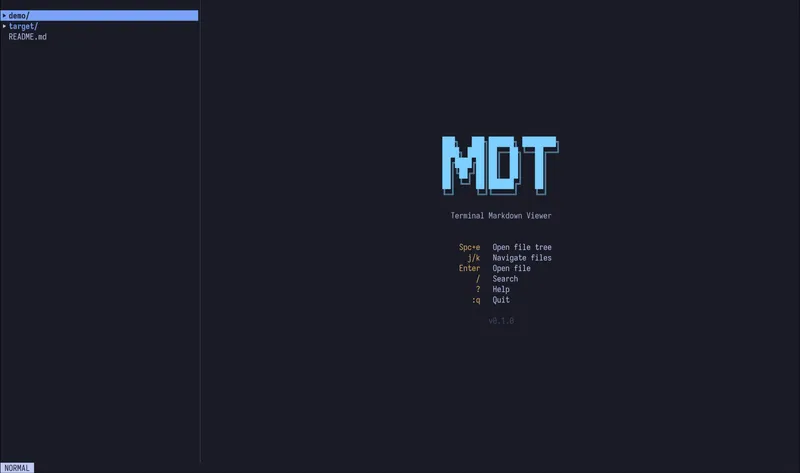
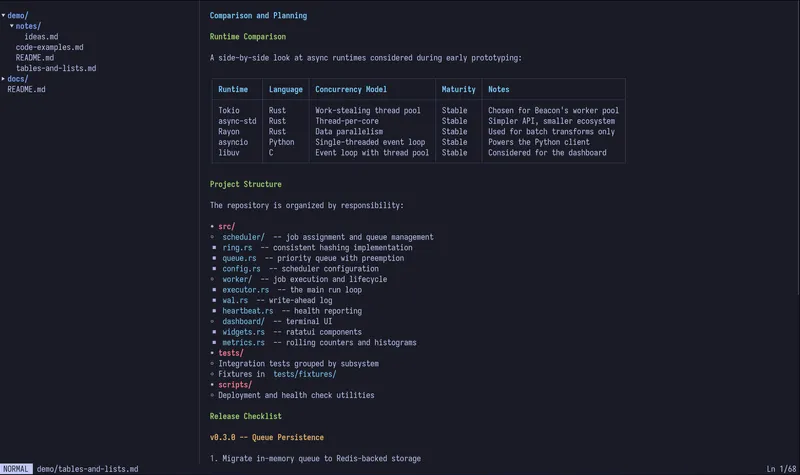
The file browser is the left pane of the mdt interface. It displays a collapsible tree of your project’s files and directories, with full support for navigation and file management.
Navigating the tree
Section titled “Navigating the tree”Use j/k or the arrow keys to move through the file tree. Press Enter to open a file for preview, or to toggle a directory open/closed. You can also use h to collapse and l to expand directories.
Press Tab to switch focus between the file tree and the preview pane.
To toggle the file tree on or off, press Space+e. This gives the preview pane the full terminal width.
File management
Section titled “File management”mdt supports common file operations directly from the file tree:
| Key | Action |
|---|---|
a | Create a new file |
A | Create a new directory |
d | Delete a file or directory |
r | Rename a file or directory |
m | Move a file or directory |
When creating files, you can use nested paths like abc/def/notes.md and mdt will create any intermediate directories automatically.
Fuzzy file finder
Section titled “Fuzzy file finder”Press ff to open the fuzzy file finder. This overlay lets you type part of a filename to quickly jump to any file in the project, no matter how deeply nested.
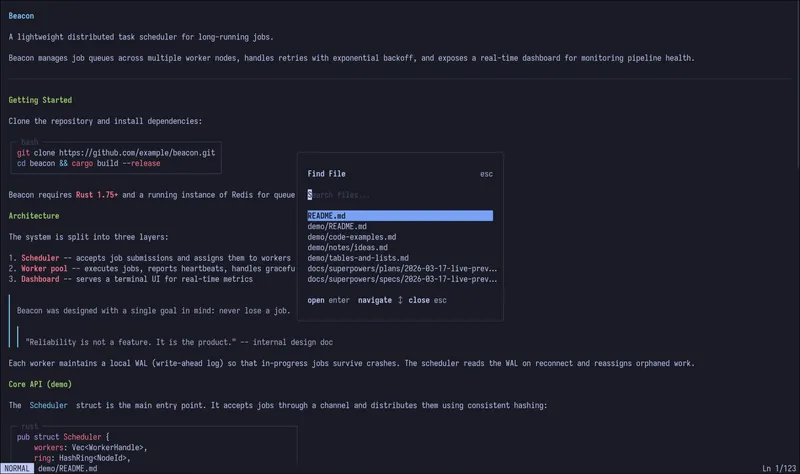
The fuzzy matcher scores results by how closely they match your query, so you can find files with just a few characters.
File tree search
Section titled “File tree search”Press / while the file tree is focused to start a search. The tree filters entries in real time as you type, narrowing down to matching files and directories.
File watching
Section titled “File watching”mdt watches the filesystem for changes. If a file is modified outside of mdt (for example, by another editor or a build tool), mdt automatically reloads it. This keeps your preview up to date without any manual action.